
If you recently installed 8k player vip on your Smart TV or Android device and you’re not sure how to configure it correctly, this complete guide will walk you through every step.
This tutorial explains:
- How to activate 8k player vip
- How to configure Xtream Codes API
- How to add M3U URL
- How to fix common problems
- How to optimize streaming performance
This guide works on:
- Android TV
- TV Box
- Firestick
- Smart TVs supporting IPTV apps
- Compatible media devices
What is 8K Player VIP?
8k player vip is an IPTV media player application that allows users to load IPTV playlists using:
Xtream Codes API
M3U URL
MAC-based configuration (depending on provider)
Important:
The app itself does not provide channels. It works as a player interface. You need valid IPTV credentials from a provider to access content.
Step 1: Install 8K Player VIP on Your Device
Before configuration, make sure the app is installed on your device.
On Android TV or TV Box:
- Open your app store
- Search for 8k player vip
- Install the application
- Open the app
After launching, you will see the main dashboard screen.
You should see a Playlist section similar to your screenshot.
Step 2: Open Playlist Settings
From the home screen:
1️⃣Open 8k player vib
Select Your Server (8K VIP, Cloud, KSA or Cloud Pro)
Or more
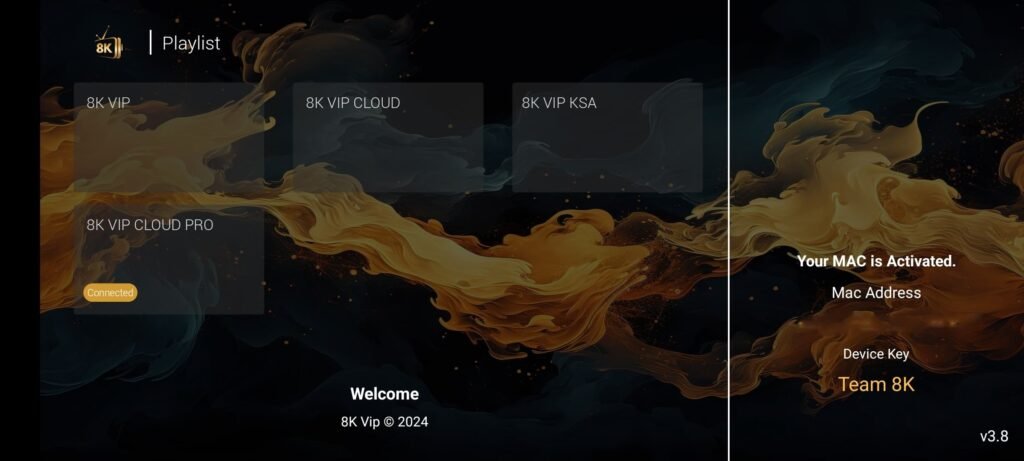
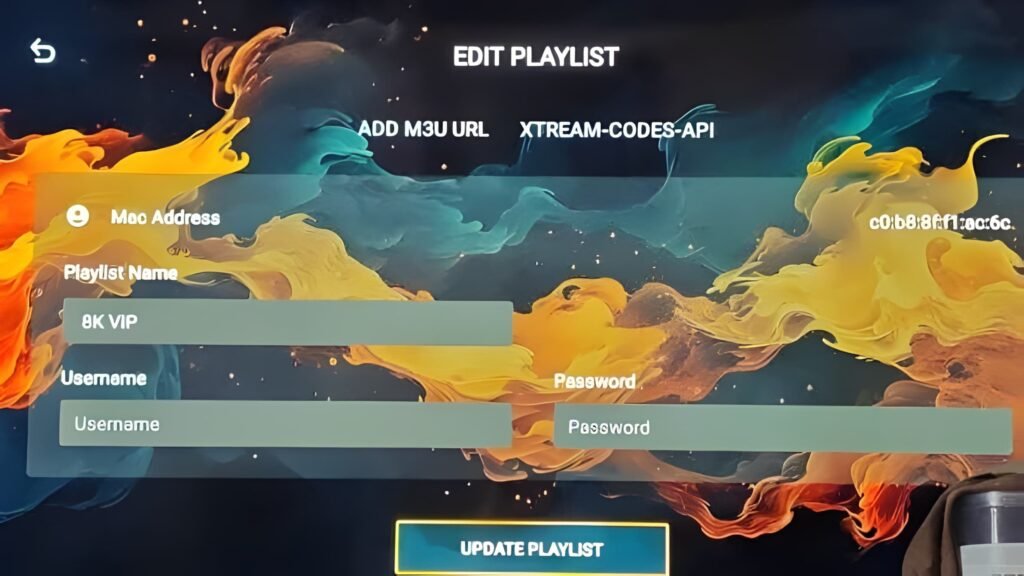
2️⃣ Configure Your 8K Player VIP Playlist ( Username / Password) Click Update Playlist
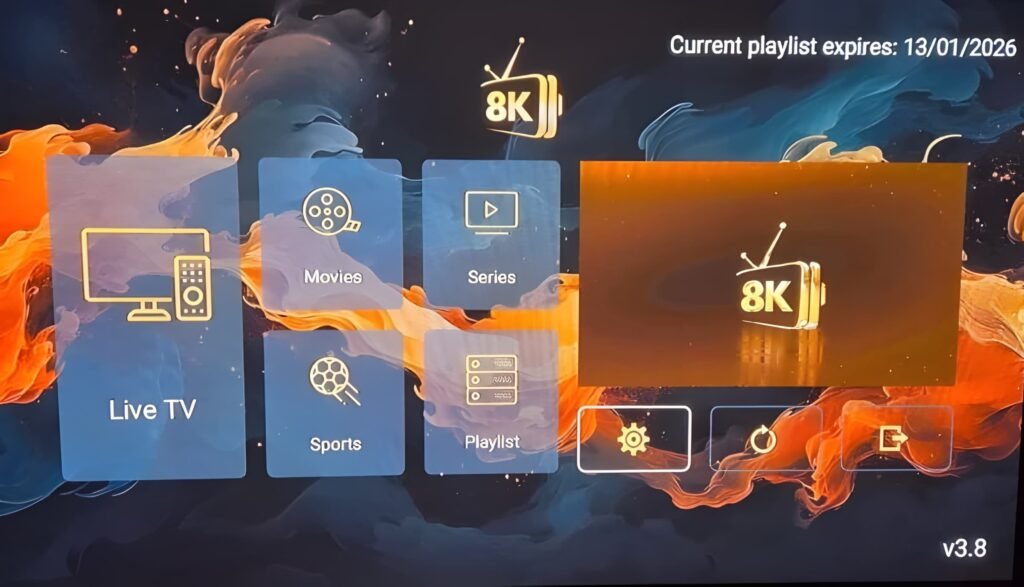
3️⃣ Access the 8K Player VIP Main Dashboard
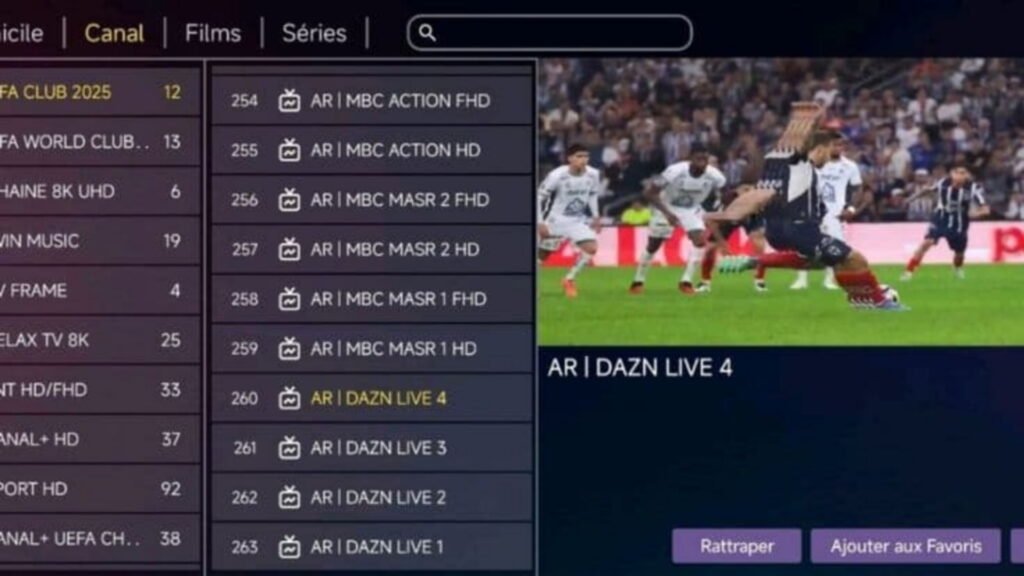
4️⃣Browsing Live TV Channels in 8K Player VIP
Step 3: Choose the Correct Setup Method
There are two main ways to activate 8k player vip:
Option A: Xtream Codes API (Recommended)
This is the most stable and professional method.
Your IPTV provider will give you:
- Server URL
- Username
- Password
To configure:
- 1.Select Xtream-Codes-API
- 2. Enter Server URL
- 3. Enter Username
- 4. Enter Password
- 5. Give Playlist Name (example: 8K VIP)
- 6. Press Update Playlist
Wait a few seconds while the system connects to the server.
If credentials are correct, your playlist will activate.
Step 4: Accessing the Main Dashboard
After successful activation, you will see the main interface of 8k player vip.
From your screenshot example, categories include:
- Live TV
- Movies
- Series
- Sports
- Playlist
This is your main navigation panel.
Each section loads content from your activated playlist.
Step 5: Watching Live TV Channels
To access channels:
- 1️⃣ Click Live TV
- 2️⃣ Navigate through categories on the left
- 3️⃣ Select any channel
- 4️⃣ The video preview will appear on the right
In your shared screenshot, we see:
- Channel list on the left
- Video preview window on the right
- Channel details
- Favorites option
This confirms your playlist is properly configured.
If you need IPTV access compatible with 8k player vip, you can check activation options here:
Step 6: Using Sports and Premium Sections
Inside the Sports category:
You can:
- Browse sports channels
- Filter by region
- Add channels to Favorites
- Use search bar at the top
Navigation tips:
- Use remote arrows to move
- Press OK to select
- Press Back to return
8k player vip is optimized for TV remote control use, making it easy to navigate.
Step 7: Troubleshooting – 8K Player VIP Not Working
Sometimes users face issues like:
- Channels not loading
- Buffering
- Playlist expired
- Login error
Here’s how to fix them:
🟡Double-check username and password
🟡Confirm server URL is correct (no extra spaces)
🟡 Restart the app
🟡 Restart your TV or device
🟡Check internet connection
🟡Clear app cache
🟡 Confirm subscription is active
If the playlist shows expiration date (like in your screenshot), verify that your plan is still valid.
Step 8: Improving Streaming Performance
For best performance on 8k player vip, follow these recommendations:
- Use Ethernet cable instead of WiFi
- Minimum 30 Mbps internet speed
- Prefer 5GHz WiFi if wireless
- Avoid running many apps in background
- Restart router weekly
- Keep app updated
Stable internet is more important than high resolution.
Advanced Tips for Stable IPTV Playback
To reduce buffering:
- Avoid peak hours if server is overloaded
- Do not share account across multiple devices
- Use wired connection when possible
- Disable VPN if it slows connection (unless required)
If streams freeze frequently, problem is usually server-side or internet-related.
Why Many Users Choose 8K Player VIP
Here are key advantages:
- Clean TV-friendly interface
- Organized categories
- Fast channel switching
- Supports HD / Full HD / 4K
- Easy Xtream Codes setup
- Playlist expiration tracking
The interface is visually optimized for large screens and remote control navigation.
Frequently Asked Questions
Does 8k player vip include channels?
No. It is a player application. You must add your own IPTV credentials.
Is Xtream Codes better than M3U?
Yes, Xtream Codes API usually provides faster loading and better stability.
Why is my playlist not updating?
Check:
- Internet connection
- Expired subscription
- Incorrect login details
Can I use 8k player vip on multiple devices?
Depends on your IPTV subscription plan.
Final Setup Summary
To configure 8k player vip correctly:
1️⃣ Install app
2️⃣ Open Playlist
3️⃣ Select Xtream Codes API
4️⃣ Enter server details
5️⃣ Update Playlist
6️⃣ Access Live TV / Movies / Sports
That’s it.
Need a Working IPTV for 8K Player VIP?
Choose a stable, activation-ready plan designed specifically for 8K Player VIP users.